Try Sortd for FREETry Sortd
AI Inbox Labels reads your Gmail Primary inbox and files every conversation under a real Gmail label: Read, Respond, Revisit, Review, Relax or R.I.P. Labels update as threads move, so your inbox always shows what’s waiting on you.
Each label says what the email needs from you. They’re real Gmail labels, so you can open, filter and search them like any other label.
You should know about this, but no reply is expected.
A question, a request or a decision. Someone expects a reply.
You’ve already replied, or you’ve deferred it. The conversation isn’t finished.
System messages: notifications, receipts and alerts.
The conversation is finished. Nothing more to do.
Marketing, newsletters and sales outreach.
Some messages also get a second tag on top of their label.
The message has clear urgency.
It’s tied to a deadline or a date.
You’ve handed the ball to someone else.
You said you’d get back to them.
It lands in Respond: someone is waiting on you.
It moves to Revisit and is pinned, because the next move is yours.
It moves to Relax. Nothing left to do.
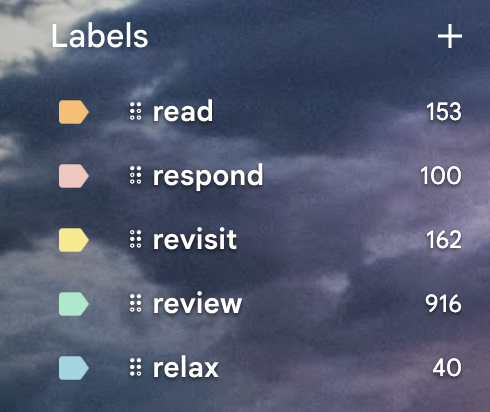
AI Inbox Labels works inside Gmail. There’s no separate app or tab: your labels sit in the Gmail sidebar on the web and in the Gmail app, with counts that update as mail arrives and threads move.
Read how the 5R system works →They’re separate features that work well together: sort your own mail with AI Inbox Labels, and run shared work on boards with AI Oversight.
Labels your own Gmail Primary inbox with the 5Rs, so you can see at a glance what needs you, what you’re waiting on and what you can ignore.
Admins switch on AI for a shared board, such as support, finance or orders, and Sortd shows status, urgency and sentiment on every card, so the whole team sees what needs attention.
Inbox assistants sort your mail. AI Inbox Labels does that inside Gmail, and Sortd gives you boards, a day plan and team features for what comes next.
Your labels live in Gmail on the web and in the Gmail app. Keep your shortcuts, your filters and your Gemini drafts.
Drag a Respond or Revisit email onto a board, give it a due date and plan it into your day.
When work becomes shared, switch on shared inboxes, assignment and AI Oversight in the same tool.
AI Inbox Labels is in beta on Essentials and Business. No extra AI subscription and no credits to top up.
See plans & pricing →AI Inbox Labels is a Sortd AI feature for your own Gmail inbox. It reads each conversation in your Primary inbox and applies one of six Gmail labels: Read, Respond, Revisit, Review, Relax or R.I.P. Labels update as conversations move, and some messages also get a secondary tag such as Urgent or Waiting.
No rules to write. Once AI Inbox Labels is turned on for your account, new mail is labelled as it arrives, and the first run works back through your recent inbox so your existing mail is caught up too.
Yes. Each of the six labels and four secondary tags can be switched off individually in your settings. Messages won’t be tagged with the ones you turn off.
No. AI Inbox Labels only classifies your Primary inbox, plus any other Gmail tab you specifically enable it for.
AI Inbox Labels is in beta on the Essentials and Business plans. To turn it on for your account, email team@sortd.com.
AI Inbox Labels is personal: it labels your own inbox. AI Oversight works on shared boards, such as a support, finance or orders board, and shows status, urgency and sentiment on each card for the whole team. You can use either or both.
Yes. The labels are real Gmail labels, so they show up in the Gmail app on your phone as well as in Gmail on the web.
AI Inbox Labels is in beta on the Essentials and Business plans.